




How to fix a wireless mouse cursor moving on its own?
 Dec 23, 2025|
 A wireless mouse is a convenient peripheral for modern computer users, offering flexibility and freedom of movement. However, one of the most frustrating issues that users might encounter is the cursor moving on its own. As a wireless mouse supplier, I understand how this problem can disrupt your work or gaming experience. In this blog, I'll share some scientific and practical ways to fix this problem.
1. Check for Interference
Interference is one of the most common reasons why a wireless mouse cursor may move on its own. Wireless devices operate on specific frequencies, and other nearby electronics can cause disruptions.
- Electromagnetic Interference (EMI): Devices like microwave ovens, Wi - Fi routers, and Bluetooth speakers can emit electromagnetic waves that interfere with the wireless signal of your mouse. Try moving your mouse, the wireless receiver, and your computer away from these potential sources of interference. For example, if you have a Wi - Fi router placed right next to your computer, move it a few feet away.
- Frequency Overlap: Some wireless mice operate on the same frequency as other devices. If you have multiple wireless devices in the same area, they might be interfering with each other. You can try changing the channel of your Wi - Fi router or other wireless devices. Additionally, if your mouse allows for it, you can pair it with a different USB receiver in a different port to see if the problem persists.
2. Inspect the Mouse
The issue could be with the mouse itself. Here are some steps to check:
- Clean the Sensor: The optical sensor at the bottom of the mouse can accumulate dirt, dust, or debris over time. This can cause the sensor to misinterpret movements and make the cursor move erratically. Use a can of compressed air to blow away any loose particles. If there are stubborn stains, you can gently wipe the sensor with a soft, dry cloth. Avoid using any liquids as they can damage the sensor.
- Battery Check: Low battery power can also lead to a malfunctioning wireless mouse. Replace the batteries with fresh ones and see if the problem is resolved. If you're using a rechargeable mouse, make sure it's fully charged. Sometimes, a partially charged battery can cause intermittent signal issues.
3. Update the Mouse Driver
An outdated or corrupted mouse driver can cause problems with the cursor movement.
- Windows: To update the driver on a Windows computer, open the Device Manager. You can do this by right - clicking on the Start button and selecting Device Manager. Expand the “Mice and other pointing devices” category, right - click on your wireless mouse, and select “Update driver.” Follow the on - screen instructions to complete the update.
- Mac: On a Mac, the operating system usually updates the drivers automatically when you install new software updates. However, you can try resetting the System Management Controller (SMC) which can sometimes resolve driver - related issues.
4. Check the Surface
The surface on which you're using the mouse can also affect its performance.
- Unstable Surfaces: If you're using the mouse on an uneven or soft surface, such as a pillow or a wrinkled tablecloth, it can cause the cursor to move inconsistently. Move the mouse to a flat, stable surface like a mouse pad or a smooth wooden table.
- Reflective or Glossy Surfaces: Some optical mice may have trouble tracking on highly reflective or glossy surfaces. If you're using such a surface, try switching to a non - reflective mouse pad.
5. Hardware Issues
In some cases, there may be a hardware problem with the mouse or the receiver.
- Receiver Problems: Try plugging the wireless receiver into a different USB port. Sometimes, a faulty port can cause issues with the signal. If possible, test the receiver on another computer to see if it works properly.
- Mouse Malfunction: If all else fails, the mouse itself may be defective. Contact the manufacturer's customer support for further troubleshooting or to request a replacement.
As a wireless mouse supplier, we offer a wide range of high - quality wireless mice. Our Mouse Led Wireless is a popular choice for users who want a mouse with a unique LED lighting effect. The Lightest Gaming Mouse Wireless is perfect for gamers who need a lightweight and responsive mouse. And for those who prefer a more modern and stylish look, our Mouse Computer Transparent is an excellent option.

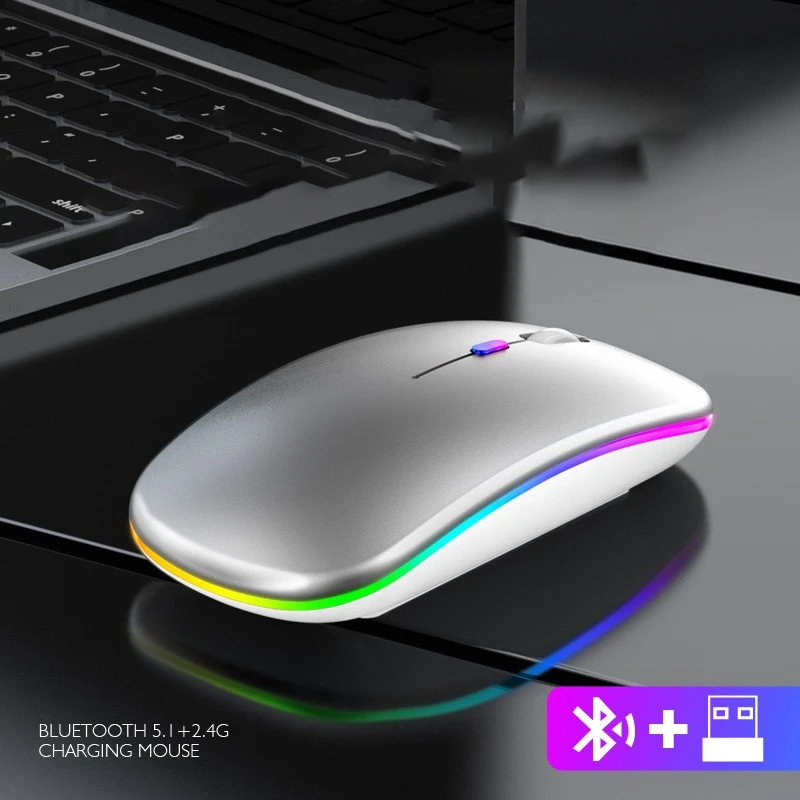
If you're interested in purchasing our wireless mice in bulk or have any questions about our products, we welcome you to contact us for procurement discussions. We're committed to providing you with the best products and services.
References
- Microsoft Support. (n.d.). Update drivers in Windows. Retrieved from Microsoft official website.
- Apple Support. (n.d.). Reset the SMC on your Mac. Retrieved from Apple official website.