




How to adjust the key sensitivity on a wired keyboard?
 Oct 06, 2025|
 Adjusting the key sensitivity on a wired keyboard is a crucial aspect that can significantly enhance your typing experience. As a supplier of a wide range of wired keyboards, including the Soft Touch Wired Keyboard, Multimedia Wired Keyboard, and Soft Touch Keyboard Wired, I understand the importance of this feature. In this blog post, I'll share some comprehensive insights on how to adjust the key sensitivity of a wired keyboard.
Understanding Key Sensitivity
Before delving into the adjustment process, it's essential to understand what key sensitivity means. Key sensitivity refers to the amount of force required to register a keystroke on a keyboard. A keyboard with high sensitivity requires less force to activate a key, while a keyboard with low sensitivity demands more pressure. Different users have different preferences based on their typing habits, hand strength, and the type of tasks they perform. For instance, gamers often prefer keyboards with high sensitivity for quick and responsive key presses, while typists may have varying preferences depending on their comfort.
Why Adjust Key Sensitivity?
There are several reasons why you might want to adjust the key sensitivity of your wired keyboard. Firstly, it can improve your typing comfort. If you find that you're applying too much force while typing, leading to fatigue, increasing the key sensitivity can make typing less strenuous. On the other hand, if you accidentally press keys too easily, reducing the sensitivity can prevent unwanted keystrokes. Secondly, it can enhance your productivity. For tasks that require rapid typing, such as writing an article or coding, a more sensitive keyboard can allow you to type faster. In contrast, for tasks where precision is crucial, like data entry, a lower sensitivity can help you avoid errors.
Methods to Adjust Key Sensitivity
1. Through Keyboard Software
Many modern wired keyboards come with dedicated software that allows you to customize various settings, including key sensitivity. Here's how you can use keyboard software to adjust the key sensitivity:
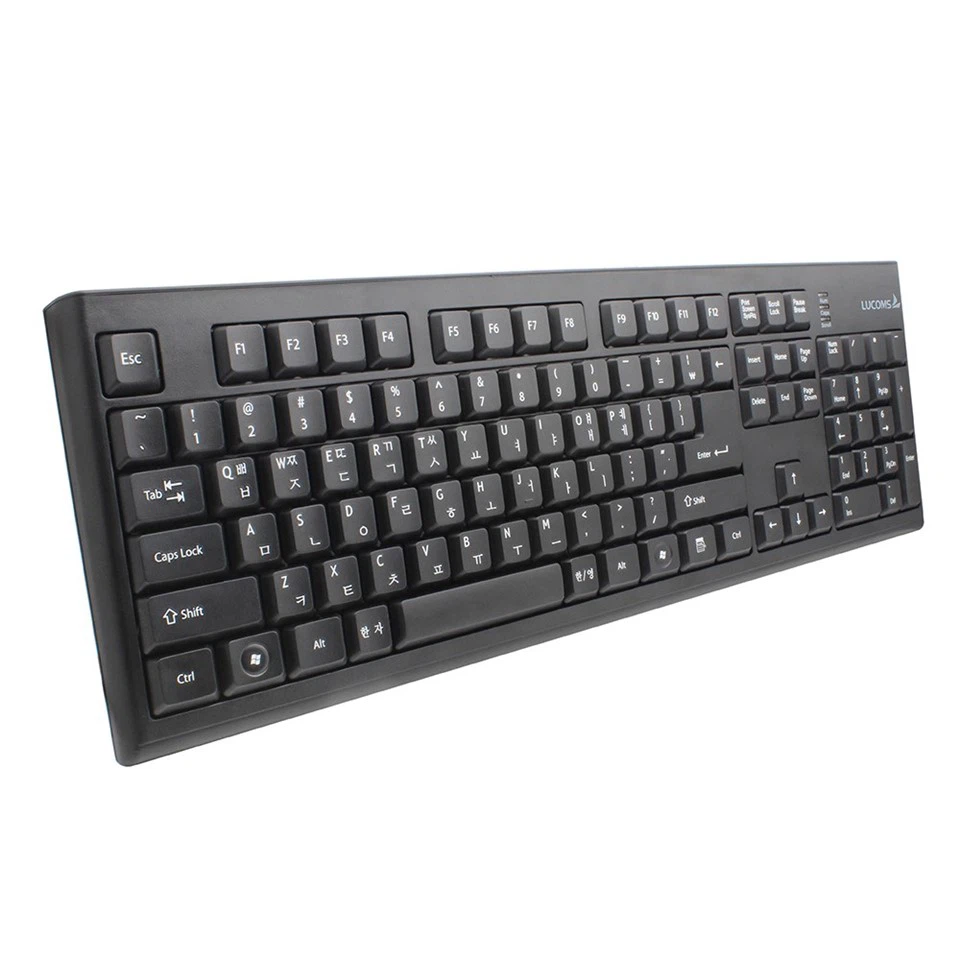
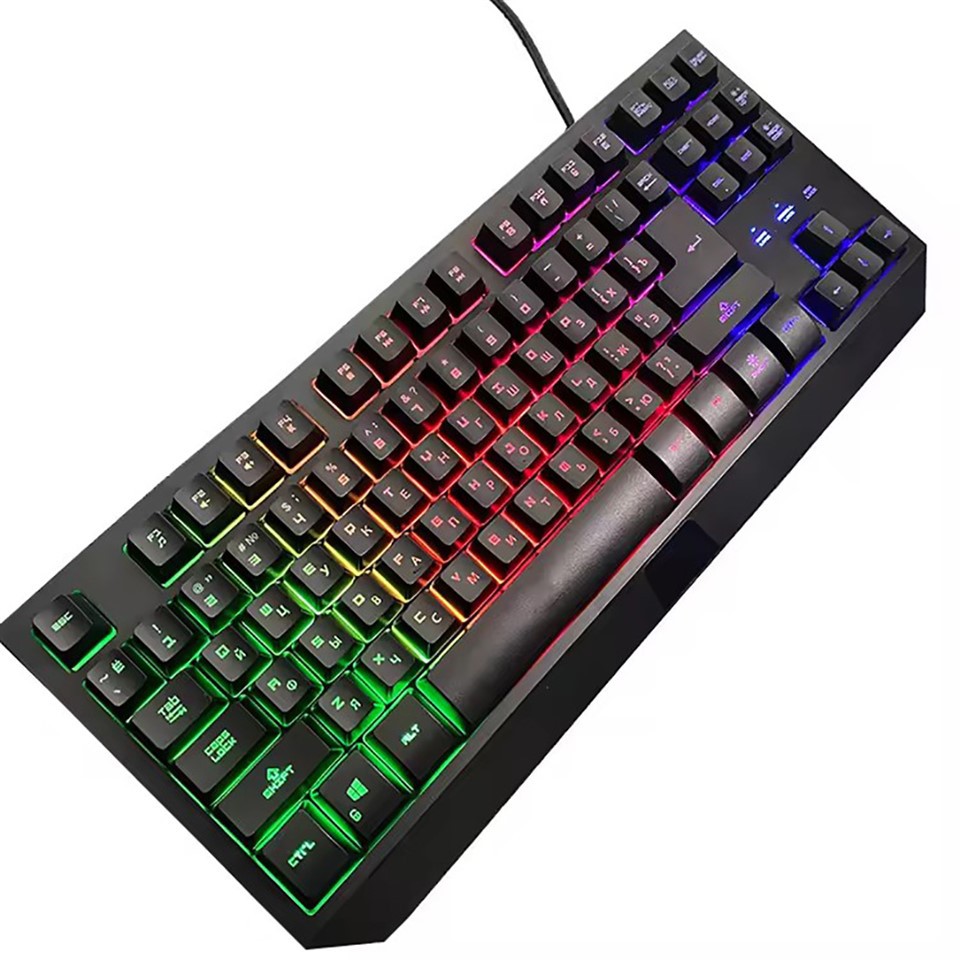
- Installation: First, you need to install the software provided by the keyboard manufacturer. You can usually find the software on the manufacturer's official website. Download the software and follow the installation instructions.
- Launch the Software: Once the software is installed, launch it from your computer's applications or the system tray. You may need to connect your wired keyboard to your computer during this process.
- Locate the Key Sensitivity Setting: In the software interface, look for the option related to key sensitivity. It may be labeled as "Key Pressure," "Key Activation Force," or something similar.
- Adjust the Sensitivity: Use the slider or numerical input provided in the software to adjust the key sensitivity according to your preference. You can test the changes by typing on the keyboard while the software is open.
2. Operating System Settings
Even if your keyboard doesn't have dedicated software, you can still make some basic adjustments to the key sensitivity through your operating system settings.
- Windows:
- Open the "Control Panel" on your Windows computer. You can do this by searching for "Control Panel" in the Start menu.
- In the Control Panel, find and click on "Keyboard."
- In the Keyboard Properties window, you'll see options to adjust the "Repeat delay" and "Repeat rate." The repeat delay determines how long you need to hold a key before it starts repeating, and the repeat rate determines how fast the key repeats. You can also adjust the cursor blink rate here, which is related to typing feedback.
- While these settings don't directly adjust the key activation force, they can affect your overall typing experience and can be considered as part of the key sensitivity adjustment.
- Mac:
- Click on the Apple menu in the top - left corner of your screen and select "System Preferences."
- In the System Preferences window, click on "Keyboard."
- Here, you can adjust the "Key repeat" and "Delay Until Repeat" settings. Similar to Windows, these settings influence how your keyboard behaves when you hold a key down, which can be related to your perception of key sensitivity.
3. Hardware Adjustment (if available)
Some high - end wired keyboards may have physical switches or buttons that allow you to adjust the key sensitivity directly on the keyboard. These keyboards are often designed for specific purposes, such as gaming or professional typing. To make hardware adjustments:
- Refer to the User Manual: Check the user manual that came with your keyboard to find out if it has hardware adjustment options and how to use them.
- Locate the Adjustment Mechanism: Look for switches, buttons, or dials on the keyboard itself. These may be located on the side, back, or under the keyboard.
- Make the Adjustment: Use the adjustment mechanism to change the key sensitivity. Some keyboards may have different preset levels, while others may allow for more precise adjustments.
Troubleshooting Key Sensitivity Issues
Sometimes, you may encounter issues when trying to adjust the key sensitivity. Here are some common problems and their solutions:
- No Software Available: If your keyboard doesn't have dedicated software and the operating system settings don't provide enough adjustment options, you may need to consider upgrading to a keyboard that offers more customization features. As a wired keyboard supplier, we offer a range of keyboards with advanced software support, such as the Multimedia Wired Keyboard, which allows for extensive customization.
- Inconsistent Key Sensitivity: If you notice that some keys have different sensitivities than others, it could be due to a hardware problem. Try cleaning the keyboard to remove any debris that may be affecting the key switches. If the problem persists, contact the keyboard manufacturer for support.
- Software Compatibility Issues: If the keyboard software doesn't work properly on your computer, make sure that your operating system is up - to - date. You can also try reinstalling the software or contacting the manufacturer's support team for assistance.
Choosing the Right Wired Keyboard for Key Sensitivity Adjustment
When selecting a wired keyboard, it's important to consider the key sensitivity adjustment options available. Here are some factors to keep in mind:
- Customization Features: Look for keyboards that offer a wide range of customization options, including precise key sensitivity adjustment. Our Soft Touch Wired Keyboard and Soft Touch Keyboard Wired are designed with user - friendly software that allows for easy customization of key sensitivity.
- Build Quality: A high - quality keyboard is more likely to have reliable key sensitivity adjustment mechanisms. Consider the materials used in the keyboard's construction and read reviews from other users to gauge its build quality.
- Purpose: If you're a gamer, you may want a keyboard with extremely high - speed and customizable key sensitivity. For general typing, a keyboard with a more balanced sensitivity adjustment option may be sufficient.
Conclusion
Adjusting the key sensitivity on a wired keyboard is a simple yet effective way to improve your typing experience. Whether you use keyboard software, operating system settings, or hardware adjustments, there are multiple ways to customize the key sensitivity according to your preference. As a wired keyboard supplier, we are committed to providing high - quality keyboards with excellent key sensitivity adjustment features. If you're interested in purchasing a wired keyboard or have any questions about key sensitivity adjustment, we welcome you to contact us for procurement and further discussions. We can help you find the perfect keyboard that meets your specific needs.
References
- Manufacturer's user manuals for various wired keyboards.
- Operating system documentation for Windows and Mac.